Professional editing, family-friendly library. Here’s how to make both tools work together without fighting each other.
If you’re reading this, you’re probably running Immich already and you use Capture One for serious photo work. The question isn’t whether the tools are good — they are. The question is how to connect them without creating a mess. You want your edited photos available to family in Immich. You want your RAW files organized and accessible for future edits. You don’t want to manage two separate folder structures or copy files twice. Your laptop is full, your server is empty.
This is the workflow that solves it. Sessions, not Catalogs. External libraries in Immich. RAW files stored but ignored. Exported JPGs indexed and searchable. One folder structure, two tools, zero duplication.

The Problem This Solves
Here’s what has never worked for me: shooting, importing to Capture One, editing, exporting JPGs to one location, then uploading those JPGs to a photo sharing service separately. You end up with files in two places, no clear source of truth, and the nagging question of what happens if you need to re-edit something later. The need to re-upload when you make changes.
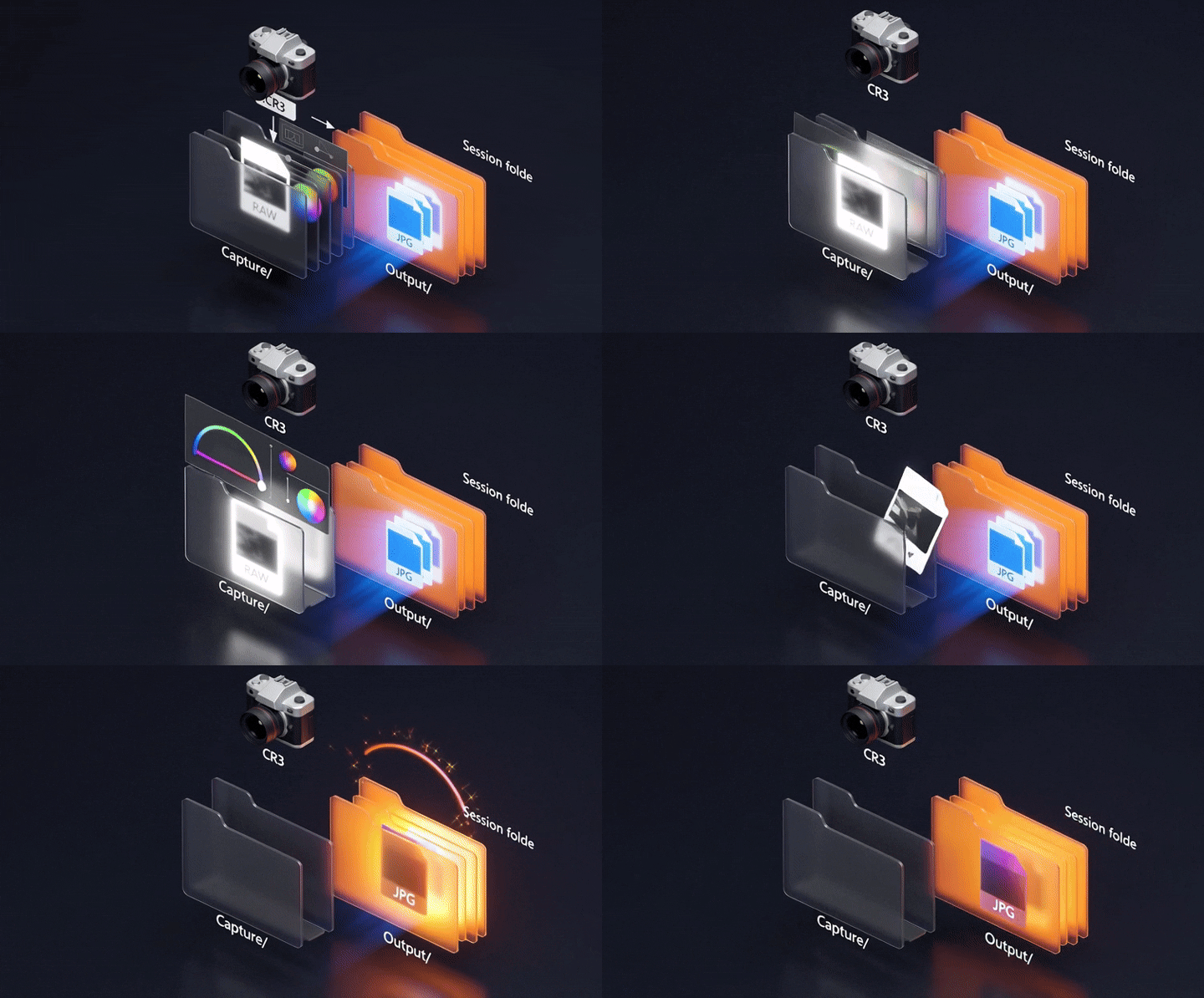
In my case ongoing Sessions get edited on my laptop, I move completed sessions to my server. The Output folder inside the Session is where exports go. Immich watches that Output folder (and the parent Session folder) as an external library. The RAW files are there, stored alongside the edits, but Immich ignores them because you tell it to. Only the exported JPGs get indexed. Your spouse sees finished photos in Immich. You see the complete Session — RAWs, edits, exports, all of it — in Capture One.
One folder structure. Two views. No duplication.
Sessions, Not Catalogs
Capture One offers two organizational modes: Catalogs and Sessions. Catalogs use a database to track images. Sessions are file-system based — the folder structure is the organization, and the .cosessiondb file and other subfolders store adjustments alongside your images. Move the folder, the adjustments move with it.
Sessions keep everything together. That’s the architecture this workflow depends on.
The Folder Structure
Here’s what a Session looks like on disk:
/server/photos/20260215-Family-Portraits/
├── 20260215-Family-Portraits.cosessiondb/ # C1 session database
├── Capture/                # Raw files
├── Selects/                # Optional - I don't use this
├── Output/                 # Exported JPGs go here
├── Trash/                  # Session trashed raw files
The Session folder lives on the server at my preferred location. Each shoot gets its own folder, named by date and subject. Inside, the .cosessiondb file with a Capture folder containing raw files and some thumbnail/adjustment data. The Output subfolder is where Capture One exports finished JPGs.
Immich’s external library is pointed at this same location. It scans recursively, meaning it sees every Session folder and every subfolder inside them. The key: Immich is configured to ignore RAW files. It only indexes JPGs (and videos, if you shoot those).
External Libraries in Immich
In the Immich web UI, go to Administration → External Libraries → Create External Library.
Set the Import Path to the mount point inside the Immich container. If your docker-compose.yml mounts /mnt/server/photos to /mnt/photos inside the container, use /mnt/photos here.
Enable Exclusion Patterns. This is critical. Add the following patterns:
**/*.CR3
**/*.CR2
**/*.NEF
**/*.ARW
**/*.RAF
The first set (**/*.CR3, etc.) tells Immich to ignore RAW files by extension. Add whatever RAW formats your camera produces. The last line (**/CaptureOne/**) tells Immich to skip the adjustment folder entirely — no reason to index Capture One’s metadata files.
Set Scan Method to Manual or Daily, depending on your preference. Manual gives you control — you scan when you’re ready. Daily means Immich automatically picks up new exports overnight. I use daily, but will trigger a manual scan if I want the photos to hit immediately after editing.
Save the library. Trigger the first scan. Depending on how many Sessions you already have, this takes minutes to hours. Once it completes, you should see only exported JPGs in Immich. No RAWs. No adjustment files. Just finished photos.
The Actual Workflow
Here’s the step-by-step for a typical shoot:
1. Shoot. DSLR to SD card. Nothing fancy here.
2. Import to Capture One Session. Insert the SD card. Open Capture One. Create a new Session on laptop, saved directly to ~/pictures/Capture One/Sessions/YYYYMMDD-Shoot-Name/. Import from the SD card into that Session.
3. Cull and edit. Go through the shoot. Delete the bad shots — out of focus, wrong exposure, duplicates nobody needs. Empty the Capture One trash so they’re actually gone from disk. Apply adjustments to the keepers. Rate, tag, whatever your organizational system is.
4. Export. Select the photos you want available in Immich (usually everything you kept after culling, sometimes a smaller subset if it’s a large shoot). Set the export location to the Output folder inside the Session. Export as JPG, full resolution, sRGB color space. Capture One writes the files to Output/.
5. Copy Session to server. The complete session folder goes to my Capture One external library on the server.
6. Scan in Immich. Open the Immich web UI. Go to Administration → External Libraries → [Your Library] → Scan. Immich indexes the new JPGs in the Output folder. Face recognition runs. Semantic search updates. A few minutes later, the photos appear in the timeline.
7. Create an album (optional). If you want the shoot grouped as an album in Immich, create one and add the photos manually. Immich doesn’t auto-create albums from folder structure when using external libraries — you control album organization yourself.
That’s it. Your spouse logs into Immich on their phone and sees the finished photos. You open Capture One and see the full Session — RAWs, adjustments, exports. The files live in one place. No duplication. No confusion about which version is current.
What This Workflow Gets Right
Single source of truth. The Session folder on the server is authoritative. Everything lives there. You back up that folder, you’ve backed up the RAWs, the edits, and the exports. One backup target, not three.
No manual import. You’re not exporting JPGs to a local folder and then uploading them to Immich. The export goes straight to a folder Immich is already watching. One step, not two.
RAW files stay accessible. If you need to re-edit a photo six months later — different crop, different color grade, client wants a variation — the RAW is sitting right there in the Session. Open Capture One, apply new adjustments, export again. Immich picks up the new version on the next scan.
Clean Immich library. Your family doesn’t see RAW files they can’t open. They don’t see Capture One adjustment files. They see finished JPGs that display correctly on every device. The library stays clean without manual filtering.
Portability. Move the Session folder to an external drive for offsite backup. Copy it to a new server. Archive old shoots to cold storage. The Session stays intact. Immich’s external library just needs to be pointed at the new location — no re-import, no broken links.
What You’re Actually Building
This workflow treats Immich as the presentation layer and Capture One as the archive. Immich is where finished photos live — searchable, shareable, backed up to mobile devices, accessible to family. Capture One is where the source material lives — RAWs, adjustment history, the ability to re-edit anything at any time.
Related Reading
- Bye, Google Photos: How to Deploy Immich via Docker Compose
- You’re Going to Need to De-Google. Let Me Tell You Why.
About Brendon
Brendon Brown is a fractional CTO and digital strategist working with private brands, religious institutions, and mid-market businesses that refuse to settle for mediocre technology. Fourteen years in digital marketing, IT infrastructure, and eCommerce migrations taught him that most companies are running on systems that actively work against them — bloated, expensive, badly integrated, and genuinely ugly. He fixes that. The technical side is table stakes: process automation, marketing stack deployment, complex migrations handled in-house. What sets the work apart is the refusal to treat aesthetics as optional. Your website is your reputation engine. If it looks like everyone else’s, you’ve already lost. The de-Googling and self-hosted infrastructure writing on this blog isn’t theory — it’s documentation of the same decisions he walks clients through when they’re ready to stop renting their digital infrastructure from surveillance companies.
Running a photography business or managing a creative workflow? The difference between a system that works and one that constantly fights you is usually architectural. Book a short call with Brendon. Thirty minutes. No slides, no pitch deck. Just a straight conversation about your workflow, where the friction actually is, and what’s worth fixing first. Schedule a call →
I wonder, what to do if my Capture folder also has JPEGs?
Ideally you should be photographing in RAW to preserve the full depth of what your camera’s sensor captures.
Even so, this workflow is modeled to keep one image as source of truth which Immich ignores, and present only the edited final images to Immich.
If .jpg was in my regular workflow, I would be developing an exclusion pattern for the base directory of sessions, or an inclusion only for Output/ directories.