Like Google Photos, except it’s yours and doesn’t spy on you. Here’s how to set it up in under an hour.
If you read the de-Googling post, you already know why Immich matters. Google Photos is good, incredibly so, and replacing it with something that actually works took the open-source community years. Immich got there with face recognition, semantic search, automatic album creation, a timeline that organizes your life chronologically, all wrapped up into a slick interface which resembles its replacement carefully. It runs on hardware you control, with your photos never leaving your network unless you explicitly choose to share them.
This is a technical deployment guide, not for the novice. If you’re reading this, I’m supposing you have a local or remote server prepped with Docker Compose which sits at the sweet spot for a home server or small VPS — simple enough to manage, robust enough to run in production. If you’re comfortable with a terminal and you’ve installed a Docker container before, you’ll be fine. If you haven’t, this will walk you through it.

What You Need Before You Start
For this case I recommend a Linux server or VPS: Ubuntu, Debian, Fedora, Arch, any of them work. The official recommendation is 4GB RAM minimum, 6GB recommended. Two CPU cores minimum, four recommended. Storage requirements depend on your library size, with Immich adding roughly 10–20% overhead when processing thumbnails and transcoding video.
Docker and Docker Compose must be installed. Critically, you need the command docker compose (with a space), not the deprecated docker-compose (with a hyphen). If you’re on Ubuntu 22.04 or later and you installed Docker from the distro’s package manager, you probably have the wrong version. Follow Docker’s official installation guide to get the current release.
Basic terminal comfort. You’ll be editing text files, running a handful of commands, and occasionally checking logs. That’s it.
Directory Structure
Immich needs a home. Create a directory to hold everything. Where? Doesn’t matter, just be consistent – people put their docker files everywhere.
bash
mkdir -p ~/immich-app
cd ~/immich-app
Download the official docker-compose.yml and .env files from Immich’s latest release:
bash
wget -O docker-compose.yml https://github.com/immich-app/immich/releases/latest/download/docker-compose.yml
wget -O .env https://github.com/immich-app/immich/releases/latest/download/example.env
The .env file is full of variables which will be referenced by the docker-compose.yml file, and tries to the only file you need to edit (with some exceptions). It controls where your photos live and how Immich connects to its database. Open it:
bash
nano .envThe critical variables:
- UPLOAD_LOCATION — Where photos uploaded to Immich are stored. Default is
./library, which creates a folder in the current directory. - DB_DATA_LOCATION — Where the PostgreSQL database lives. Default is
./postgres. - DB_PASSWORD — The default is
postgres. Change it. Use something random. - IMMICH_VERSION — Defaults to
release, which always pulls the latest stable version.
Save and exit.
First Run
Start Immich:
bash
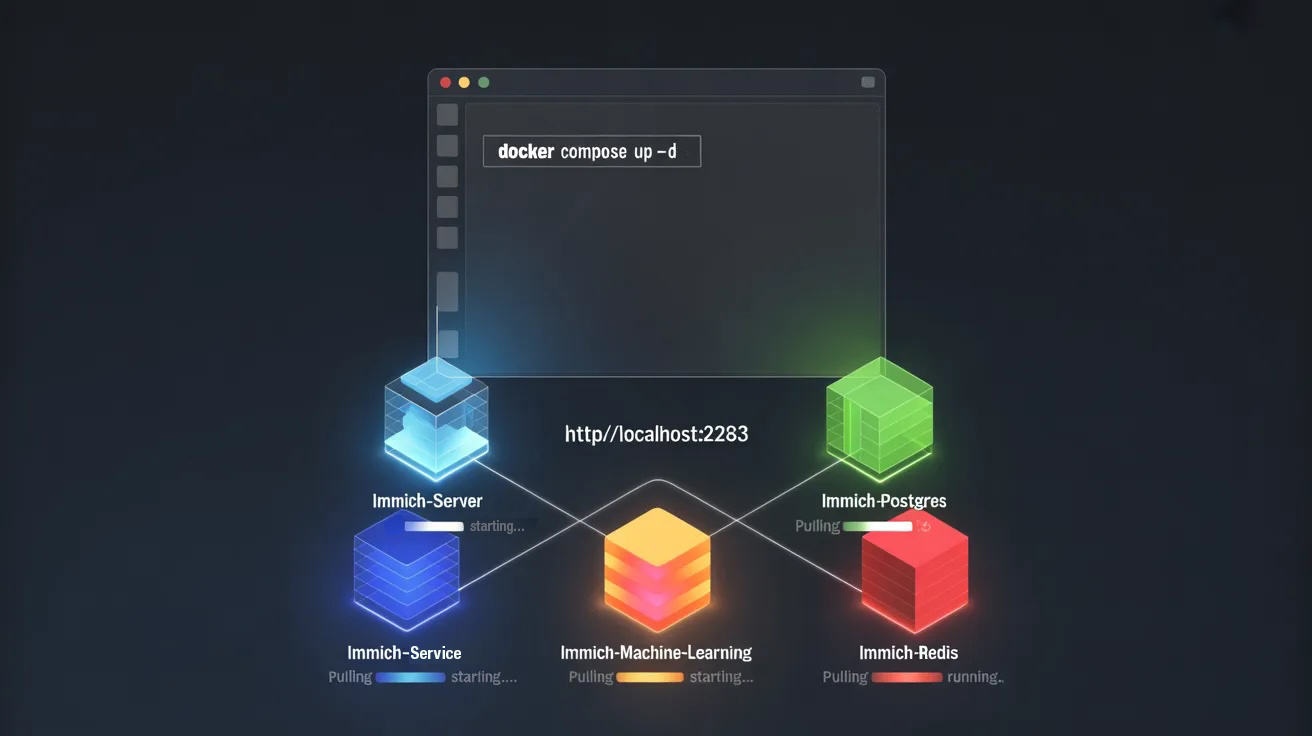
docker compose up -dDocker pulls the images (immich-server, immich-machine-learning, postgres with VectorChord, and Valkey for caching), creates the containers, and starts everything in the background. The first pull will take several minutes time, so be patient. Subsequent starts are instant.
Check that everything’s running:
bash
docker compose psYou should see four containers: immich_server, immich_machine_learning, immich_postgres, and immich_redis. All should show “Up” in the status column.
Once it’s up, access the web interface at http://<your-server-ip>:2283. The first user you register becomes the admin. Choose a strong password. This account controls everything — adding users, managing libraries, adjusting settings.
External Libraries: Have it Your Way
Immich works by indexing uploaded images and videos into it’s own structure within your library folder. Do you already have folders of images organized the way you like? Immich can index those folders without copying files as an external library.
You’ll simply add this existing folder as a volume in the docker-compose.yml, then you’ll launch Immich and add it.
To set this up, edit docker-compose.yml. Find the immich-server service and add a volume mount to the bottom of the volumes section:
yaml
volumes:
 [...]
  - /path/to/your/existing/photos:/mnt/<folder-name>:ro
The :ro at the end means read-only. Immich can index the files, it can’t modify or delete them.
Restart Immich:
bash
docker compose down
docker compose up -d
In the Immich web UI, go to Administration > External Libraries > Create External Library. Set the import path to /mnt/<folder-name> (the path inside the container, not the host path). Enable periodic scanning if you want Immich to automatically pick up new files. Daily scans work well for most use cases. Manual scans are also an option if you prefer tighter control.
Trigger the first scan. Depending on library size, this takes anywhere from minutes to hours. Face recognition and machine learning run in the background after the initial index completes.
This is an essential component of my Capture One to Immich strategy.
Migrating from Google Photos with immich-go
If you’re coming from Google Photos, wait up! There’s a lovely community-driven script to import Google Takeout structure methodically and automatically.
immich-go parses Takeout archives correctly, reconstructs albums, applies metadata from the JSON sidecars, and uploads everything to Immich in a format that actually works. Keep your albums, dates, and location data. The GitHub documentation walks through the installation and upload process — it’s straightforward once you have your Takeout archives downloaded and an API key from your Immich instance.
The tool saves hours of manual work and produces a clean import. If you’re migrating a Google Photos library of any size, it’s not optional.
What Happens Next
Immich is running. Your photos are indexed. Face recognition is working. Now install the mobile app from iOS App Store, the Android Play Store, or via F-Droid for those who prefer open-source distribution channels. In the app, point it at your server (http://<your-server-ip>:2283), log in, and enable automatic backup. This will run in the background, uploading new photos whenever you’re on Wi-Fi or whenever you’ve configured it to run. It’s the same experience as Google Photos — seamless, invisible, reliable.
The next question is workflow. If you’re a photographer using Capture One or Lightroom, the Capture One workflow post covers how to integrate Immich with your editing process without duplicating files or breaking your organizational structure.
For now, you have a self-hosted photo library that actually works. No tracking, no data mining, no surveillance. Just your photos, organized the way you want them, accessible from anywhere you choose.
Related Reading
- You’re Going to Need to De-Google. Let Me Tell You Why.
- Shodan: The Search Engine That Shows Everything You Left Exposed
About Brendon
Brendon Brown is a fractional CTO and digital strategist working with private brands, religious institutions, and mid-market businesses that refuse to settle for mediocre technology. Fourteen years in digital marketing, IT infrastructure, and eCommerce migrations taught him that most companies are running on systems that actively work against them — bloated, expensive, badly integrated, and genuinely ugly. He fixes that. The technical side is table stakes: process automation, marketing stack deployment, complex migrations handled in-house. What sets the work apart is the refusal to treat aesthetics as optional. Your website is your reputation engine. If it looks like everyone else’s, you’ve already lost. The de-Googling and self-hosted infrastructure writing on this blog isn’t theory — it’s documentation of the same decisions he walks clients through when they’re ready to stop renting their digital infrastructure from surveillance companies.
Need help deploying your own stack? Self-hosting is straightforward when you know the right approach, and painful when you don’t. Book a short call with Brendon. Thirty minutes. No slides, no pitch deck. Just a straight conversation about your infrastructure, what’s worth self-hosting, and what’s better left in the cloud. Schedule a call →
Pingback: Capture One to Immich: Workflow for a de-Googled Photographer – Brendon Brown